> ## Documentation Index
> Fetch the complete documentation index at: https://resend.com/docs/llms.txt
> Use this file to discover all available pages before exploring further.
# Contacts
> An introduction to how your Contacts are organized and maintained in Resend.
## Global Contact list
Resend manages a global Contact list for your [Broadcasts](/docs/dashboard/broadcasts/introduction) with tools for viewing, organizing, and updating your subscribers.
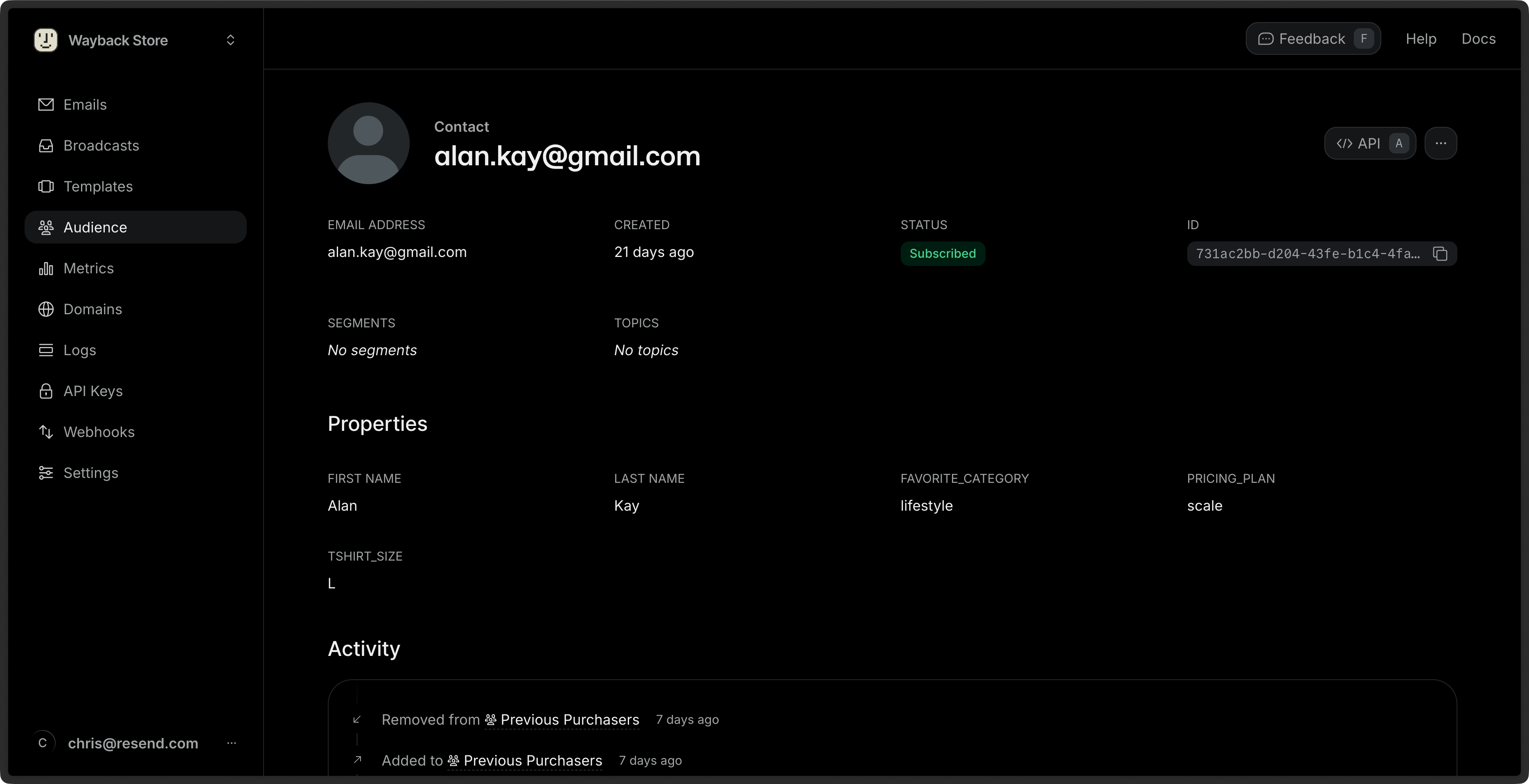
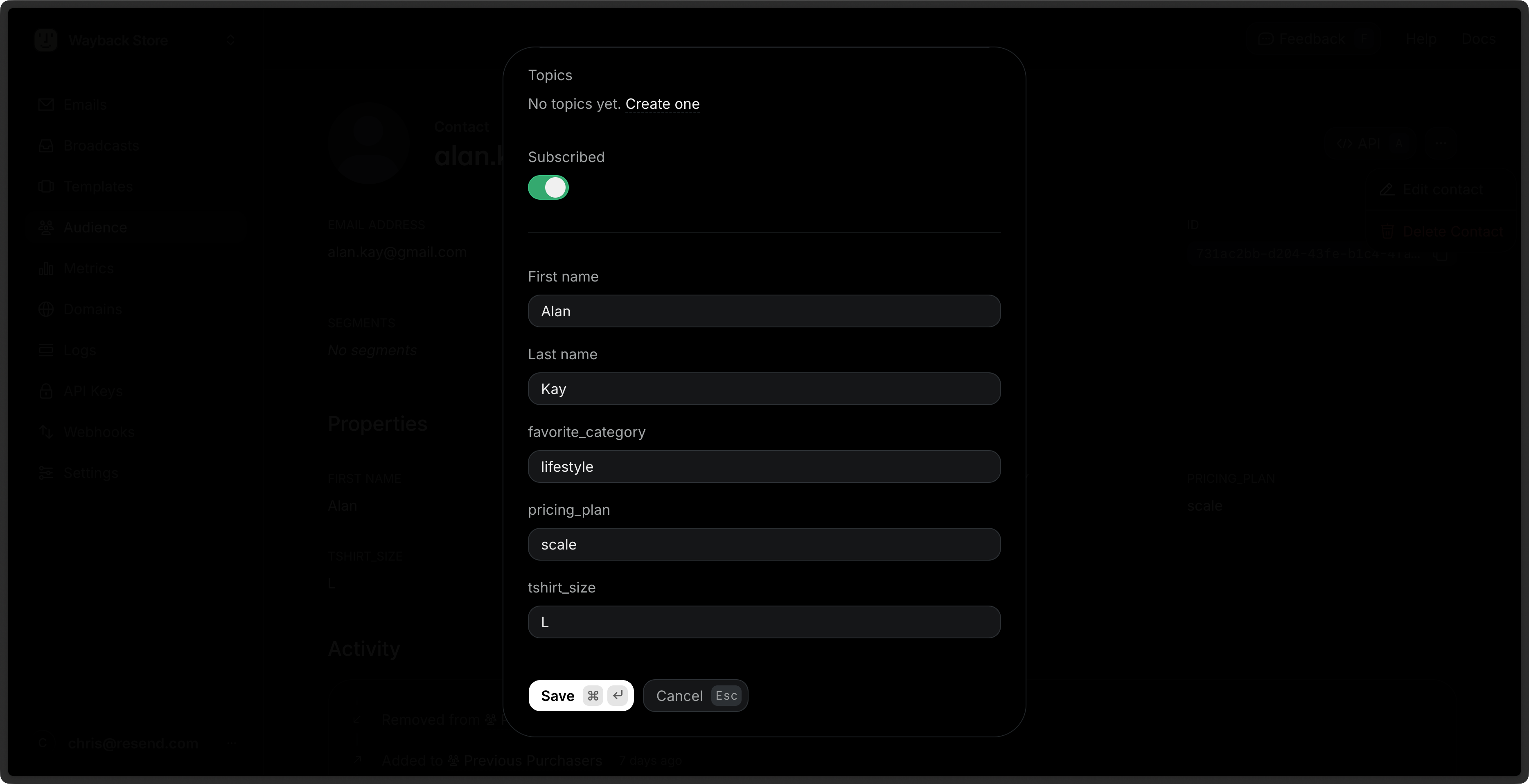
Contacts are global entities linked to a specific email address. Add additional [Contact properties](#contact-properties), such as a first name, to store additional information and personalize your marketing emails.
Organize your Contacts into [Segments](#segments) for sending Broadcasts, and optionally use [Topics](#topics) to let your Contacts self-manage their receiving preferences.
Each Contact:
* is associated with a single email address
* can have custom properties
* can be in zero, one, or multiple Segments
* can opt in or out of Topics
If you previously used our Audience model, learn how to [migrate to the new
Contacts model](/docs/dashboard/contacts/migrating-from-audiences-to-segments).
## Contact features
For each Contact, you can:
* [View and manage](#manage-contacts) individual Contact details.
* Add and update [Contact properties](#contact-properties), including custom properties.
* Assign one or more Broadcast [Segments](#segments) for internal organization.
* Maintain a list of Broadcast [Topics](#topics) they have subscribed to.
## Quickstart
In the [Dashboard](https://resend.com/audience), add Contacts manually by providing one or more email addresses, or [upload your existing Contacts](/docs/dashboard/contacts/add-contacts#add-contacts-by-uploading-a-csv) stored in a `.csv` file.
Add Contacts programmatically with the [Contacts API](/docs/dashboard/contacts/manage-contacts#add-contacts-programmatically-via-api) or [CLI commands](cli#contacts).
To add a single Contact manually in the Dashboard:
An email address is the only required property for a new Contact. However,
a Contact must belong to a Segment in order to receive a Broadcast.
See examples of [adding Contacts using other methods](/docs/dashboard/contacts/add-contacts).
## Choose your infrastructure
You can build and manage your Contact list entirely from the Resend Dashboard. This allows all members of your team to have full access to your Contact list and to perform any necessary maintenance.
To organize and update your Contacts and their properties from your application, you can use a variety of tools:
* [SDKs](/docs/sdks): manage with an SDK built for your language
* [Integrations](/docs/integrations): manage with a framework or tool you already use
* [API](/docs/api-reference/contacts/create-contact): manage with raw cURL calls
* [CLI](/docs/cli#contacts): manage from the terminal
* [MCP server](/docs/mcp-server): manage through your agent with MCP
You can also create [Automations](/docs/dashboard/automations/introduction) for repeatable actions involving Contacts such as adding new subscribers and updating your Contact list.
See how to use Resend's Contact features such as Segments and Topics in the [Contacts guides](#related-guides).
## Manage Contacts
After you have added Contacts, you'll be able to [view, manage and update Contacts](/docs/dashboard/contacts/manage-contacts) and their properties in the [Dashboard page](https://resend.com/audience). This allows all members of your team to maintain your Contact list and to perform any necessary maintenance such as [removing unsubscribed Contacts](/docs/dashboard/contacts/managing-unsubscribe-list).
You can also perform these actions programmatically through the [Contacts API](/docs/api-reference/contacts/create-contact), [Resend CLI commands](/docs/cli#contacts), [Automations](/docs/dashboard/automations/introduction), and [MCP server](/docs/mcp-server).
Learn more about [managing your Contacts](/docs/dashboard/contacts/manage-contacts) in the dedicated guide.
## Contact properties
All Contacts require a valid email address for the `email` property. In order to receive a Broadcast, a Contact will usually also be assigned to a Contact [Segment](#segments).
You can store additional information about your Contacts by adding values for other [Contact properties](/docs/dashboard/contacts/properties), including custom defined properties. Contact properties are useful for [personalizing your Broadcasts with dynamic content](/docs/dashboard/contacts/properties#use-contact-properties-in-broadcasts), such as greeting recipients by first name.
## Segments
Segments are a tool to group and manage your Contacts for sending Broadcasts. Send Broadcasts to a defined segment of your Contact list to provide extra confidence that you are delivering emails to the intended audience.
**Segments are not visible to your Contacts.** They are only used for your own internal Contact organization. Your Contacts will never see the names of your Segments, and will not know which Segment(s) they belong to.
You can view, add, and manage your Segments in the [Dashboard](https://resend.com/audience) or with any of Resend's programmatic tools such as the [Segments API](/docs/api-reference/segments/create-segment), [Resend CLI commands](/docs/cli#segments), and [MCP](/docs/mcp-server).
You can also create [Automations](/docs/dashboard/automations/introduction) to add or remove Contacts from a Segment.
See how to perform common actions to manage your Segments in the dedicated [Segments guide](/docs/dashboard/contacts/manage-segments).
## Topics
You can choose to organize your marketing emails into distinct categories based on their subject matter or purpose by assigning a Topic to your Broadcast (e.g., `announcements`, `electronics`). Each Contact has a corresponding `topics` property that determines which Broadcasts they will be sent. If you do not use Topics, then Resend will send your email to every subscribed Contact in the Broadcast's Segment.
Unlike Segments, this optional Contact property can also be updated by subscriber action, and allows your users to self-manage their email preferences.
Scope sending a [Broadcast](/docs/dashboard/broadcasts/introduction) to a particular Topic, and subscribers will have the option to unsubscribe from that specific Topic only. This means that your users can continue to receive other emails that are relevant to them. They do not need to unsubscribe from your mailing list entirely.
Resend will handle the unsubscription workflow and update each Contact's list of subscribed Topics in response to user action. You can also manually update this Contact property on the user's behalf, or as part of Automation workflows.
You can view, add, and manage your Topics in the [**Audience** Dashboard](https://resend.com/audience) or with any of Resend's programmatic tools such as the [Topics API](/docs/api-reference/topics/create-topic), [Resend CLI commands](/docs/cli#topics), and [MCP](/docs/mcp-server).
See how to perform common actions to manage your Topics in the dedicated [Topics guide](/docs/dashboard/contacts/manage-topics).
## Topics vs Segments
Topics and Segments serve different purposes. They are complementary tools to ensure that your recipients are receiving the emails they want.
| Aspect | Topics | Segments |
| - | - | - |
| **Who controls it** | Your recipients | You (the sender) |
| **Visibility** | Shown on the unsubscribe page | Internal only (recipients never see them) |
| **Purpose** | Let users manage their preferences | Organize Contacts for targeted sending |
| **Example** | "Newsletter," "Product Updates" | "Enterprise customers," "Free trial users" |
## How Segments and Topics work together
Segments are **who you're sending a Broadcast to** and Topics are **what kind of Broadcast you're sending**.
When you send a Broadcast:
1. Choose a **Segment** as your recipients (your sender intent).
2. Label the content with a **Topic** (so the system can respect recipient preferences).
3. Everyone in the Segment receives the message except Contacts who are globally unsubscribed or opted out of that Topic.
For example, you might send a product announcement to your "Enterprise Customers" Segment, labeled with the "Product Updates" Topic. Recipients who previously unsubscribed from product updates are automatically excluded from delivery, even if they are in your "Enterprise Customers" Segment.
**Segments are for targeting. Topics are for protecting preferences.** They work together without competing.
## Related Guides
See how to use Resend's Contact management features.
## Export your data
Admins can download your data in CSV format for the following resources:
* Emails
* Broadcasts
* Contacts
* Segments
* Domains
* Logs
* API keys
Currently, exports are limited to admin users of your team.
To start, apply filters to your data and click on the "Export" button. Confirm your filters before exporting your data.
If your exported data includes 1,000 items or less, the export will download immediately. For larger exports, you'll receive an email with a link to download your data.
All admins on your team can securely access the export for 7 days. Unavailable exports are marked as "Expired."
All exports your team creates are listed in the
[Exports](https://resend.com/exports) page under **Settings** > **Team** >
**Exports**. Select any export to view its details page. All members of your
team can view your exports, but only admins can download the data.
 ## Quickstart
In the [Dashboard](https://resend.com/audience), add Contacts manually by providing one or more email addresses, or [upload your existing Contacts](/docs/dashboard/contacts/add-contacts#add-contacts-by-uploading-a-csv) stored in a `.csv` file.
Add Contacts programmatically with the [Contacts API](/docs/dashboard/contacts/manage-contacts#add-contacts-programmatically-via-api) or [CLI commands](cli#contacts).
To add a single Contact manually in the Dashboard:
## Quickstart
In the [Dashboard](https://resend.com/audience), add Contacts manually by providing one or more email addresses, or [upload your existing Contacts](/docs/dashboard/contacts/add-contacts#add-contacts-by-uploading-a-csv) stored in a `.csv` file.
Add Contacts programmatically with the [Contacts API](/docs/dashboard/contacts/manage-contacts#add-contacts-programmatically-via-api) or [CLI commands](cli#contacts).
To add a single Contact manually in the Dashboard:
 ## Segments
Segments are a tool to group and manage your Contacts for sending Broadcasts. Send Broadcasts to a defined segment of your Contact list to provide extra confidence that you are delivering emails to the intended audience.
**Segments are not visible to your Contacts.** They are only used for your own internal Contact organization. Your Contacts will never see the names of your Segments, and will not know which Segment(s) they belong to.
You can view, add, and manage your Segments in the [Dashboard](https://resend.com/audience) or with any of Resend's programmatic tools such as the [Segments API](/docs/api-reference/segments/create-segment), [Resend CLI commands](/docs/cli#segments), and [MCP](/docs/mcp-server).
You can also create [Automations](/docs/dashboard/automations/introduction) to add or remove Contacts from a Segment.
See how to perform common actions to manage your Segments in the dedicated [Segments guide](/docs/dashboard/contacts/manage-segments).
## Topics
You can choose to organize your marketing emails into distinct categories based on their subject matter or purpose by assigning a Topic to your Broadcast (e.g., `announcements`, `electronics`). Each Contact has a corresponding `topics` property that determines which Broadcasts they will be sent. If you do not use Topics, then Resend will send your email to every subscribed Contact in the Broadcast's Segment.
Unlike Segments, this optional Contact property can also be updated by subscriber action, and allows your users to self-manage their email preferences.
Scope sending a [Broadcast](/docs/dashboard/broadcasts/introduction) to a particular Topic, and subscribers will have the option to unsubscribe from that specific Topic only. This means that your users can continue to receive other emails that are relevant to them. They do not need to unsubscribe from your mailing list entirely.
Resend will handle the unsubscription workflow and update each Contact's list of subscribed Topics in response to user action. You can also manually update this Contact property on the user's behalf, or as part of Automation workflows.
You can view, add, and manage your Topics in the [**Audience** Dashboard](https://resend.com/audience) or with any of Resend's programmatic tools such as the [Topics API](/docs/api-reference/topics/create-topic), [Resend CLI commands](/docs/cli#topics), and [MCP](/docs/mcp-server).
See how to perform common actions to manage your Topics in the dedicated [Topics guide](/docs/dashboard/contacts/manage-topics).
## Topics vs Segments
Topics and Segments serve different purposes. They are complementary tools to ensure that your recipients are receiving the emails they want.
| Aspect | Topics | Segments |
| - | - | - |
| **Who controls it** | Your recipients | You (the sender) |
| **Visibility** | Shown on the unsubscribe page | Internal only (recipients never see them) |
| **Purpose** | Let users manage their preferences | Organize Contacts for targeted sending |
| **Example** | "Newsletter," "Product Updates" | "Enterprise customers," "Free trial users" |
## How Segments and Topics work together
Segments are **who you're sending a Broadcast to** and Topics are **what kind of Broadcast you're sending**.
When you send a Broadcast:
1. Choose a **Segment** as your recipients (your sender intent).
2. Label the content with a **Topic** (so the system can respect recipient preferences).
3. Everyone in the Segment receives the message except Contacts who are globally unsubscribed or opted out of that Topic.
For example, you might send a product announcement to your "Enterprise Customers" Segment, labeled with the "Product Updates" Topic. Recipients who previously unsubscribed from product updates are automatically excluded from delivery, even if they are in your "Enterprise Customers" Segment.
**Segments are for targeting. Topics are for protecting preferences.** They work together without competing.
## Related Guides
See how to use Resend's Contact management features.
## Segments
Segments are a tool to group and manage your Contacts for sending Broadcasts. Send Broadcasts to a defined segment of your Contact list to provide extra confidence that you are delivering emails to the intended audience.
**Segments are not visible to your Contacts.** They are only used for your own internal Contact organization. Your Contacts will never see the names of your Segments, and will not know which Segment(s) they belong to.
You can view, add, and manage your Segments in the [Dashboard](https://resend.com/audience) or with any of Resend's programmatic tools such as the [Segments API](/docs/api-reference/segments/create-segment), [Resend CLI commands](/docs/cli#segments), and [MCP](/docs/mcp-server).
You can also create [Automations](/docs/dashboard/automations/introduction) to add or remove Contacts from a Segment.
See how to perform common actions to manage your Segments in the dedicated [Segments guide](/docs/dashboard/contacts/manage-segments).
## Topics
You can choose to organize your marketing emails into distinct categories based on their subject matter or purpose by assigning a Topic to your Broadcast (e.g., `announcements`, `electronics`). Each Contact has a corresponding `topics` property that determines which Broadcasts they will be sent. If you do not use Topics, then Resend will send your email to every subscribed Contact in the Broadcast's Segment.
Unlike Segments, this optional Contact property can also be updated by subscriber action, and allows your users to self-manage their email preferences.
Scope sending a [Broadcast](/docs/dashboard/broadcasts/introduction) to a particular Topic, and subscribers will have the option to unsubscribe from that specific Topic only. This means that your users can continue to receive other emails that are relevant to them. They do not need to unsubscribe from your mailing list entirely.
Resend will handle the unsubscription workflow and update each Contact's list of subscribed Topics in response to user action. You can also manually update this Contact property on the user's behalf, or as part of Automation workflows.
You can view, add, and manage your Topics in the [**Audience** Dashboard](https://resend.com/audience) or with any of Resend's programmatic tools such as the [Topics API](/docs/api-reference/topics/create-topic), [Resend CLI commands](/docs/cli#topics), and [MCP](/docs/mcp-server).
See how to perform common actions to manage your Topics in the dedicated [Topics guide](/docs/dashboard/contacts/manage-topics).
## Topics vs Segments
Topics and Segments serve different purposes. They are complementary tools to ensure that your recipients are receiving the emails they want.
| Aspect | Topics | Segments |
| - | - | - |
| **Who controls it** | Your recipients | You (the sender) |
| **Visibility** | Shown on the unsubscribe page | Internal only (recipients never see them) |
| **Purpose** | Let users manage their preferences | Organize Contacts for targeted sending |
| **Example** | "Newsletter," "Product Updates" | "Enterprise customers," "Free trial users" |
## How Segments and Topics work together
Segments are **who you're sending a Broadcast to** and Topics are **what kind of Broadcast you're sending**.
When you send a Broadcast:
1. Choose a **Segment** as your recipients (your sender intent).
2. Label the content with a **Topic** (so the system can respect recipient preferences).
3. Everyone in the Segment receives the message except Contacts who are globally unsubscribed or opted out of that Topic.
For example, you might send a product announcement to your "Enterprise Customers" Segment, labeled with the "Product Updates" Topic. Recipients who previously unsubscribed from product updates are automatically excluded from delivery, even if they are in your "Enterprise Customers" Segment.
**Segments are for targeting. Topics are for protecting preferences.** They work together without competing.
## Related Guides
See how to use Resend's Contact management features.